
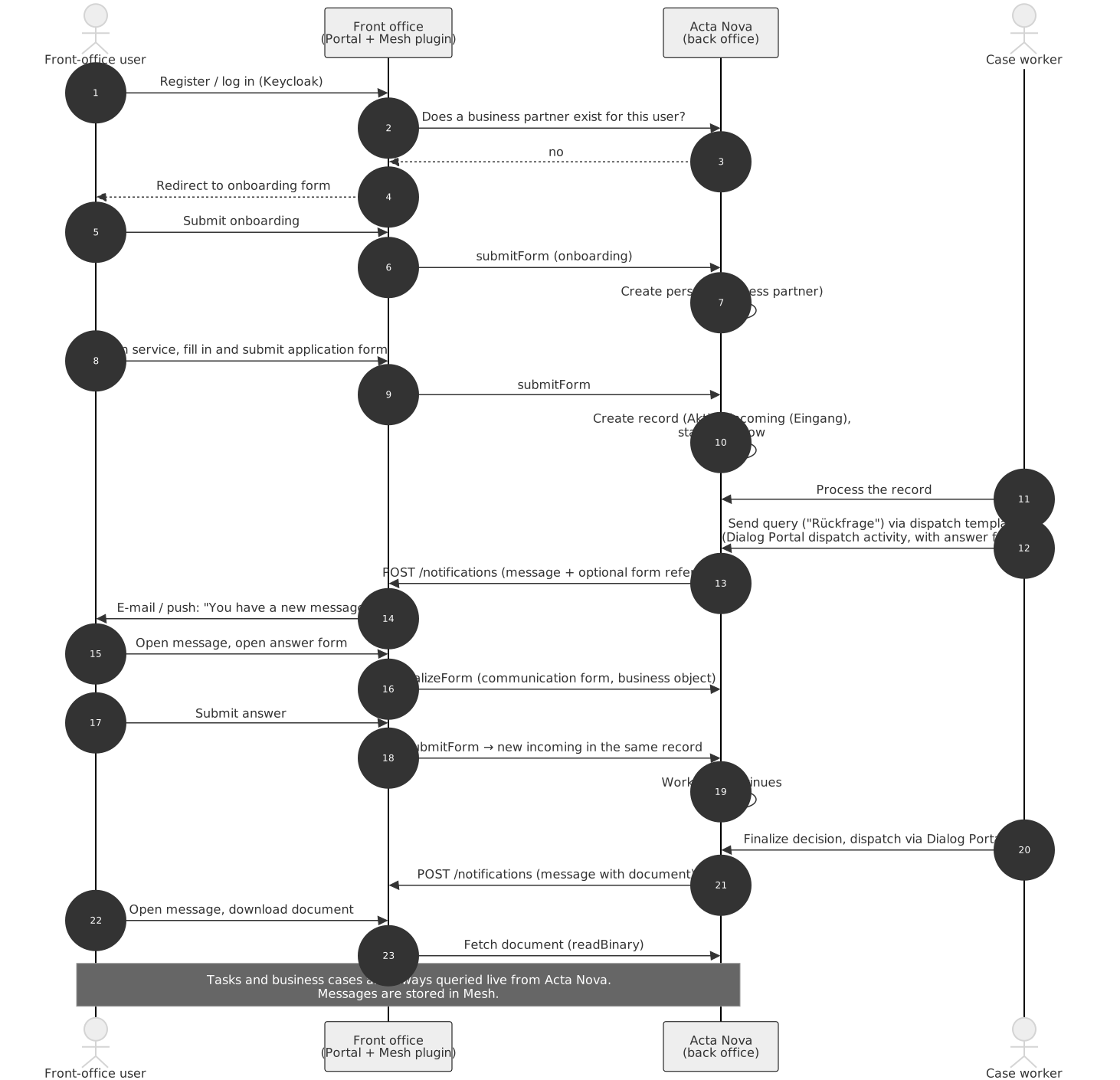
This page walks through a typical procedure as it crosses the front office and the back office. It is the front-office counterpart of the chapter Typischer Ablauf eines Dialogs in the RUBICON guideline document.
1. Registration and login
The user creates an account in Keycloak or logs in through an external identity provider (for example
ID Austria, AGOV, or an organisation’s own IdP). Keycloak issues the tokens; the portal starts the session.
Depending on the identity provider, the user gets a weak or strong role, which services can use to
require a verified identity.
Components: Keycloak, Gentics Portal \| java, Mesh Keycloak plugin.
2. First login: terms of use, onboarding, wizard
On the first login the portal runs the first-login flow:
-
With the terms-of-use feature, the user must accept the terms of use (a CMS page); the acceptance is stored in Mesh.
-
With the onboarding feature, the portal asks the back office whether a person already exists for this user. If not, the user is redirected to the onboarding form – one of the business partner services – and returned to the originally requested page afterwards. Submitting the onboarding form creates the person (business partner) in Acta Nova; only now is the user fully known to the back office.
-
Optionally a wizard introduces the portal.
Services can also require onboarding implicitly through a form precondition.
Components: portal module (first-login flow), Acta Nova Mesh plugin (getBusinessPartnerPersonExistence),
Acta Nova (business partner services, person).
3. Choosing a service
The user browses the service catalog – CMS pages with service descriptions, requirements, downloads and the "start service" button – or opens a favourite. Services can be shown or hidden depending on the user’s Keycloak and dynamic roles (logged in or anonymous, onboarding done or not, verified or not, one-time services already used).
Components: Gentics CMS (content), Mesh (content delivery, roles), portal module (service tree, favourites, role checks).
4. Filling in and submitting the application form
The form page embeds the form (an external CMS form of type andp); FormGen renders it. On opening, the
back office initialises the form: it checks the preconditions, prefills known data (name, address, …),
and returns fields, pages, visibility and computed values. The user fills in the pages; on each page change
the data is saved as a draft in Mesh and validated in the back office. Files are uploaded (optionally
pre-uploaded to Acta Nova). On submit, Acta Nova creates a record (Akt) in the configured subject area,
files an incoming with the summary document of all inputs, and starts the workflow defined in the record
template. If the service has fees, the payment is completed before the submit.
Components: FormGen, portal (proxy, form page), Acta Nova Mesh plugin (drafts, uploads, validation, submit), Acta Nova (form logic, record, workflow).
5. Processing in the back office
The case worker processes the record in Acta Nova – usually driven by the workflow started on submit. From the front office’s point of view the record is now a business case: the user sees it in the business case list together with its documents.
Components: Acta Nova; Business Cases MicroApp (live query through the plugin).
6. Queries and answers
If information is missing, the case worker creates a dispatch (Erledigung) from a template that references a communication form and sends it with the Dialog Portal dispatch activity. The dispatch can be configured to wait for the answer.
In the front office this arrives as a message: the plugin stores it, sends an e-mail ("you have a new message" with a link to the messages page) and, in the app, a push notification. Because the workflow waits for an answer, the same item also appears as a task. The user opens the message, opens the linked form – either a separate incoming-type form with its own fields, or the original record form pre-filled with the record’s data – and submits the answer. Acta Nova files it as a new incoming in the same record, and the waiting workflow continues; the task disappears.
Messages without a form (status information, confirmations) work the same way minus the answer.
Components: Acta Nova (dispatch, workflow activities), Acta Nova Mesh plugin (notifications, e-mail, push, communication form), Messages and Tasks MicroApps, FormGen.
7. Decision and delivery
When the record is decided, the case worker finalises the final document (Reinschrift) and dispatches it through the Dialog Portal. The user receives a message with the document attached and downloads it from the portal; the document itself is streamed from Acta Nova. The workflow can wait until the document has been opened, which gives the back office proof of delivery.
Components: Acta Nova, Acta Nova Mesh plugin (notification, readBinary), Messages MicroApp.
8. Afterwards
The business case stays visible to the user with all its documents and messages as long as the record is assigned to them. Drafts that were never submitted, old notifications, reports and abandoned payment transactions are removed by the plugin’s clean-up tasks according to the project’s retention settings (see Clean-up handler). The record itself follows Acta Nova’s retention and archiving rules.
Variations
-
Anonymous services: forms can be used without login for simple one-off requests; no business partner, no business case, no messages. Drafts are kept client-side.
-
Acting for an organisation: users linked to an organisation can submit services and see business cases on behalf of the organisation. Permissions are managed through the business partner services.
-
Search services: an expert-search form returns a result list instead of creating a record; rows can link to other services with pre-filled data (for example registering for a course from a list of dates).
-
Internal services: the same mechanism is used for internal procedures (leave requests, expense reports) with employees as front-office users.
-
Native app: steps 1–8 are identical in the app; the app uses the same portal and plugin APIs, with biometric login and push notifications as additions.